nv_es
novelibre ${Home page} > Páginas en castellano > ${Online help} > Ver menu
Ver menu
Control the display
${Highlight tagged elements}
With Ver > ${Highlight tagged elements}, you can highlight elements with a specified tag. This opens a tag selection dialog.
${Reset Highlighting}
With Ver > ${Reset Highlighting}, you can reset the highlighting of tree elements.
${Show Book}
Go to the “${Book}” branch and expand it
With Ver > ${Show Book}, you can select and open the “${Book}” branch.
${Show Plot lines}
Go to the “${Plot lines}” branch and expand it
With Ver > ${Show Plot lines}, you can select and open the “${Plot lines}” branch.
${Show Characters}
Go to the “Caracteres” branch and expand it
With Ver > ${Show Characters}, you can select and open the “Caracteres” branch.
${Show Locations}
Go to the “Locations” branch and expand it
With Ver > ${Show Locations}, you can select and open the “Lugares” branch.
${Show Items}
Go to the “Objetos” branch and expand it
With Ver > ${Show Items}, you can select and open the “Objetos” branch.
${Show Project notes}
Go to the “${Project notes}” branch and expand it
With Ver > ${Show Project notes}, you can select and open the “${Project notes}” branch.
${Chapter level}
Hide the sections
With Ver > ${Chapter level} or ${Ctrl}-Alt-C, you can collapse the
tree, so that only parts and chapters are visible.
${Expand all}
Show the whole tree
With Ver > ${Expand all}, you can expand the whole tree.
${Collapse all}
Hide child elements
With Ver > ${Collapse all}, you can hide all tree elements except the main categories.
${Expand selected}
Show a whole branch
With Ver > ${Expand selected}, you can expand a selected tree element.
${Collapse selected}
Hide child elements
With Ver > ${Collapse selected}, you can collapse a selected branch.
${Toggle Text viewer}
Show/hide the novel text
With Ver > ${Toggle Text viewer} or ${Ctrl}-T, you can open
or close the text viewer window, showing part/chapter/section
titles and section content.
Hint
- On reopening, the windows shows the text, where the tree is selected.
${Toggle Properties}
Show/hide the selected element’s properties
With Ver > ${Toggle Properties} or ${Ctrl}-Alt-T, you can open or
close the element properties window.
Hint
On reopening, the window shows the properties of the currently selected element.
${Detach/Dock Properties}
Show the selected element’s properties either in the main window or in its own window
With Ver > ${Detach/Dock Properties} or ${Ctrl}-Alt-D, you can
detach or dock the element properties window .
Hint
On closing the detached window, the properties are docked again.
${Options}
Project independent program settings
With Ver > ${Options}, you can open a dialog for settings concerning the display.
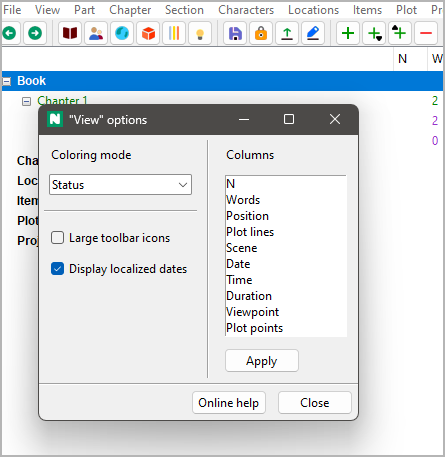
${Coloring mode}
Set criteria according to which normal sections are colored in the tree
Ninguno
Normal sections are black on white by default.
Estado
Normal sections are colored according to their completion status (Estructura, Borrador, ${1st Edit}, ${2nd Edit}, or Hecho).
${Work phase}
Normal sections are highlighted if their completion status does not match the work phase defined in the ${Book} properties.
${Large icons}
By default, the icon size is 16x16 pixels. If the ${Large icons} checkbox is ticked, 24x24 icons are used after the next program startup.
${Display localized dates}
- If ticked, localized dates are displayed.
- If unticked, dates are displayed like YYYY-MM-DD, according to ISO 8601.
${Columns}
Change the column order
- From top to bottom in the list means from left to right in the tree.
- Just drag and drop to change the order.
Click the Aplicar button to apply changes.
Copyright (c) by Peter Triesberger. All rights reserved.