novelibre ${Home page} > xxx pages > ${Online help} > ${View} menu
${View} menu
Control the display
${Highlight tagged elements}
With ${View} > ${Highlight tagged elements}, you can highlight elements with a specified tag. This opens a tag selection dialog.
${Reset Highlighting}
With ${View} > ${Reset Highlighting}, you can reset the highlighting of tree elements.
${Show Book}
Go to the “${Book}” branch and expand it
With ${View} > ${Show Book}, you can select and open the “${Book}” branch.
${Show Characters}
Go to the “${Characters}” branch and expand it
With ${View} > ${Show Characters}, you can select and open the “${Characters}” branch.
${Show Locations}
Go to the “Locations” branch and expand it
With ${View} > ${Show Locations}, you can select and open the “${Locations}” branch.
${Show Items}
Go to the “${Items}” branch and expand it
With ${View} > ${Show Items}, you can select and open the “${Items}” branch.
${Show Plot lines}
Go to the “${Plot lines}” branch and expand it
With ${View} > ${Show Plot lines}, you can select and open the “${Plot lines}” branch.
${Show Project notes}
Go to the “${Project notes}” branch and expand it
With ${View} > ${Show Project notes}, you can select and open the “${Project notes}” branch.
${Chapter level}
Hide the sections
With ${View} > ${Chapter level} or ${Ctrl}-Alt-C, you can collapse the
tree, so that only parts and chapters are visible.
${Expand all}
Show the whole tree
With ${View} > ${Expand all}, you can expand the whole tree.
${Collapse all}
Hide child elements
With ${View} > ${Collapse all}, you can hide all tree elements except the main categories.
${Expand selected}
Show a whole branch
With ${View} > ${Expand selected}, you can expand a selected tree element.
${Collapse selected}
Hide child elements
With ${View} > ${Collapse selected}, you can collapse a selected branch.
${Toggle Text viewer}
Show/hide the novel text
With ${View} > ${Toggle Text viewer} or ${Ctrl}-T, you can open
or close the text viewer window, showing part/chapter/section
titles and section content.
Hint
- On reopening, the windows shows the text, where the tree is selected.
${Toggle Properties}
Show/hide the selected element’s properties
With ${View} > ${Toggle Properties} or ${Ctrl}-Alt-T, you can open or
close the element properties window.
Hint
On reopening, the window shows the properties of the currently selected element.
${Detach/Dock Properties}
Show the selected element’s properties either in the main window or in its own window
With ${View} > ${Detach/Dock Properties} or ${Ctrl}-Alt-D, you can
detach or dock the element properties window .
Hint
On closing the detached window, the properties are docked again.
${Options}
Project independent program settings
With ${View} > ${Options}, you can open a dialog for settings concerning the display.
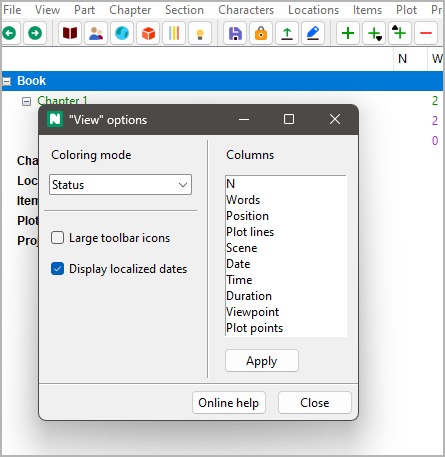
${Coloring mode}
Set criteria according to which normal sections are colored in the tree
${None}
${Normal} sections are black on white by default.
${Status}
${Normal} sections are colored according to their completion status (${Outline}, ${Draft}, ${1st Edit}, ${2nd Edit}, or ${Done}).
${Work phase}
${Normal} sections are highlighted if their completion status does not match the work phase defined in the ${Book} properties.
${Large icons}
By default, the icon size is 16x16 pixels. If the ${Large icons} checkbox is ticked, 24x24 icons are used after the next program startup.
${Display localized dates}
- If ticked, localized dates are displayed.
- If unticked, dates are displayed like YYYY-MM-DD, according to ISO 8601.
${Columns}
Change the column order
- From top to bottom in the list means from left to right in the tree.
- Just drag and drop to change the order.
Click the ${Apply} button to apply changes.
Copyright (c) by Peter Triesberger. All rights reserved.